

 X
 Discord
 Instagram
 YouTube
 ChatGPT
Custom Step Alerts
Custom Step Alerts chain several conditions into one sequenced trigger: the alert only fires when your steps happen in the order you defined, inside a bar limit you set.
A single oscillator signal tells you very little on its own. A wave cross confirmed by a strong confluence reading tells you that momentum and participation agree — and that is the kind of sequence this engine is built to capture.
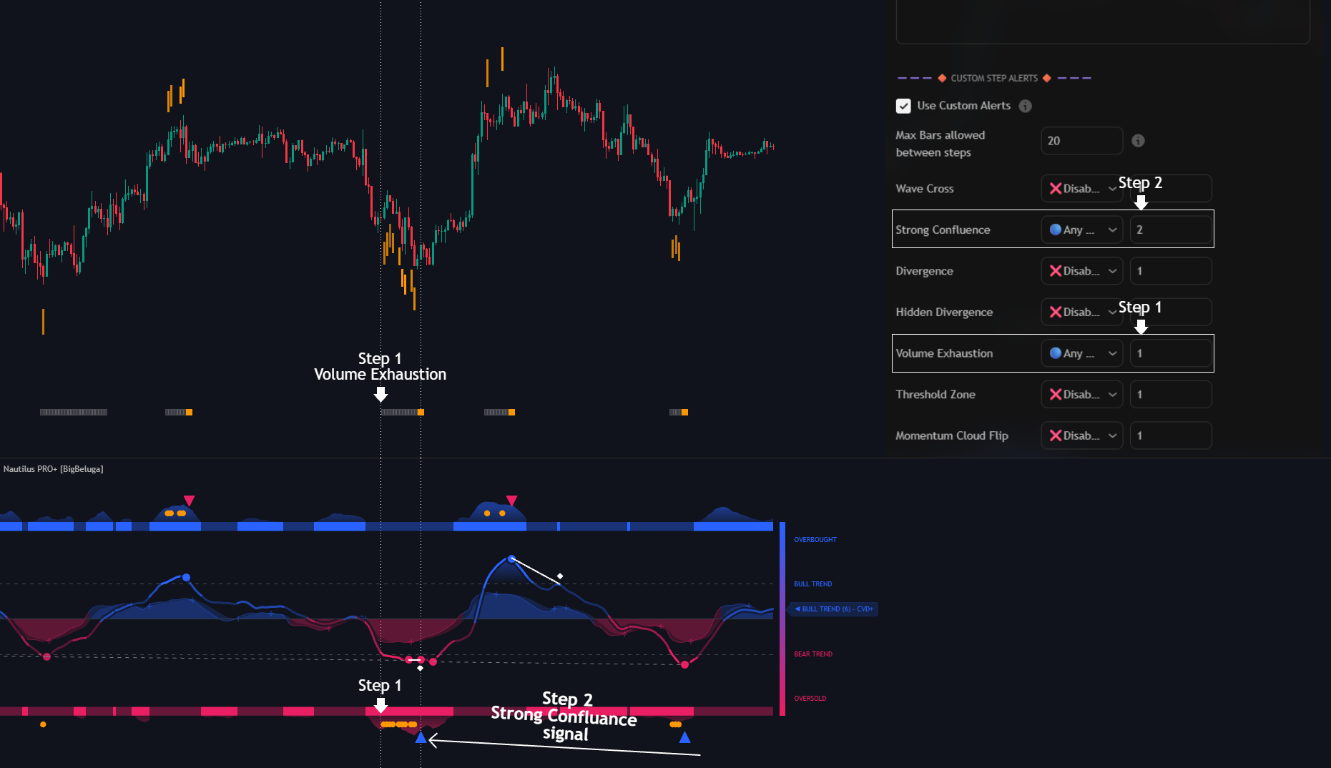
In the example above the sequence is Volume Exhaustion on step 1 and Strong Confluence on step 2, with the bar window set to 20. The exhaustion zone marks where selling ran out, the confluence reading confirms that buyers took over, and the alert only fires when both arrive in that order.
Setup controls
- Use Custom Alerts — turns the whole sequence engine on or off.
- Max Bars allowed between steps — the countdown. Once step 1 fires, the engine starts counting bars; if the next step does not happen within that window, the sequence resets to step 1.
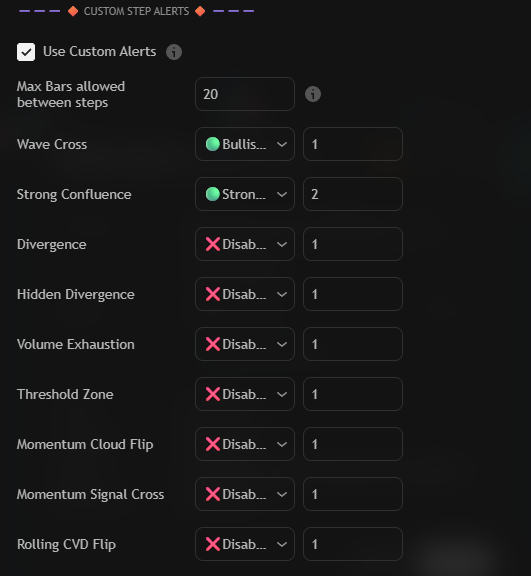
In the panel above one condition is armed on step 1 and another on step 2, with a 20 bar window
between them — the second condition only counts once the first has opened the sequence.
Steps 1 to 5
Every condition is assigned a step number between 1 and 5. That number is what turns a list of conditions into a sequence.
- Sequential steps — different step numbers run in order. Step 2 must arrive on a later bar than step 1 before the sequence moves forward.
- Simultaneous steps — the same step number means both conditions have to hit on the exact same candle to satisfy that step.
Nine conditions are available, each with its own step field:
| Condition | What it fires on |
|---|---|
| Wave Cross | Any, bullish or bearish wave cross |
| Strong Confluence | A strong bullish or strong bearish confluence reading |
| Divergence | Any, bullish or bearish regular divergence |
| Hidden Divergence | Any, bullish or bearish hidden divergence |
| Volume Exhaustion | Any, bullish or bearish exhaustion zone |
| Threshold Zone | Any, upper or lower threshold break |
| Momentum Cloud Flip | Any, bullish or bearish cloud flip |
| Momentum Signal Cross | Any, bullish or bearish momentum cross |
| Rolling CVD Flip | Any, bullish or bearish CVD flip |
External source conditions
Three external sources let you pull other series into the sequence — another indicator, a moving average, price itself.
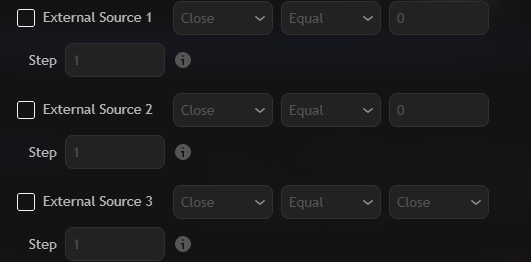
| Setting | Description |
|---|---|
| Source | The series that is evaluated. |
| Condition | Equal, Greater Than, Less Than, Crossing Over, Crossing Under, Crossing, True or False. |
| Comparison target | The value the source is compared with. Not used by True or False. |
| Step | Which step of the sequence this source belongs to. |
Selecting True or False turns the source into a binary condition, which is how you require a state ("price above the 200 EMA") rather than an event.
Time filter
Enable Time Filter restricts the whole sequence to a session window, with its own timezone — the
default is 16:00-01:00 on UTC+4. Any step that fires outside the window is ignored, so an overnight
sequence cannot complete before you are watching.

How to create a Custom Step Alert
Turn the sequence engine on
Check Use Custom Alerts and set Max Bars allowed between steps — 20 bars by default. Until the engine is on, the condition dropdowns are only display filters and no sequence is tracked.
Assign the steps
Move every condition you want to use from Disabled to its event, then type a step number next to it. Anything you leave on Disabled is ignored by the sequence, and two conditions sharing a step number have to fire on the same candle.
Add outside filters (optional)
Enable any of the three external sources, pick the series, choose the condition, type the comparison value and give it a step number.
Restrict the sequence to a session (optional)
Enable Time Filter, set the session window and pick the timezone.
Create the alert in TradingView
Press Alt + A (or the clock icon in the right toolbar) and configure the dialog:
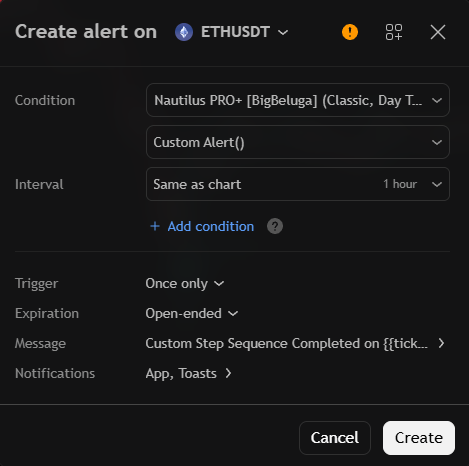
Nautilus PRO+ with the Custom Alert() option selected in the second dropdown - Condition:
Nautilus PRO+ - Second dropdown:
Custom Alert() - Trigger: once only, so the alert keeps watching for new sequences
- Name / Message: name the alert after the sequence it watches, and write a message that tells you which sequence completed.
Create the alert once. The engine now watches for your steps and fires when the whole chain completes inside the bar window.
- Condition:
Settings
| Settings | Description |
|---|---|
| Use Custom Alerts | Enable the multi-step sequence engine. |
| Max Bars Between Steps | Bars allowed between two steps before the sequence resets. |
| Module rows | Condition plus step number for wave, confluence, divergence, momentum and CVD. |
| External Source 1 / 2 / 3 | Source, condition, comparison target and step for outside series. |
| Enable Time Filter | Limit the sequence to a session, with its own timezone. |
