

 X
X Discord
 Instagram
 YouTube
 ChatGPT
Custom Alert()
How Custom Step Alerts Work
Custom Step Alerts allow you to build a multi-step trading strategy by chaining different technical events together in a specific sequence (e.g., Step 1 -> Step 2 -> Step 3).
Instead of alerting you on a single isolated event, a final alert is only triggered if your selected conditions happen one after the other within a strict, user-defined time limit.
1. The Setup Controls
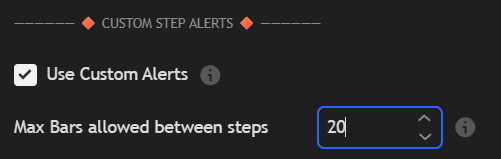
- Use Custom Alerts (Checkbox): Turns the entire multi-step tracking sequence rule on or off.
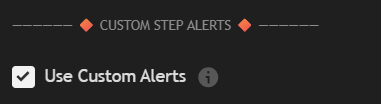
- Max Bars Allowed Between Steps:
This is your countdown window. Once Step 1 triggers, the script starts counting down candle bars.

2. Understanding the Steps (1 to 5)
You can assign any enabled technical indicator or pattern to a specific order number using the Step input field:
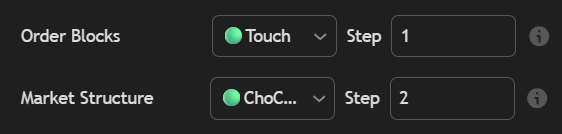
- Sequential Steps (Different Step Numbers):
If you set Order Blocks to Step 1 and Market Structure to Step 2, the Order Block event must happen first. The Market Structure event must happen at least 1 bar later for the sequence to continue.
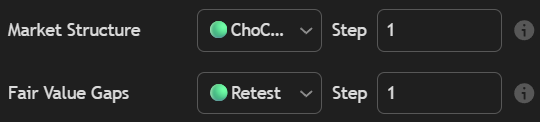
- Simultaneous Steps (Same Step Numbers):
If you set two different alerts to the same step number (e.g., both on Step 1), both conditions must hit on the exact same candle bar to trigger that step.
3. Visual Tracking on Your Chart
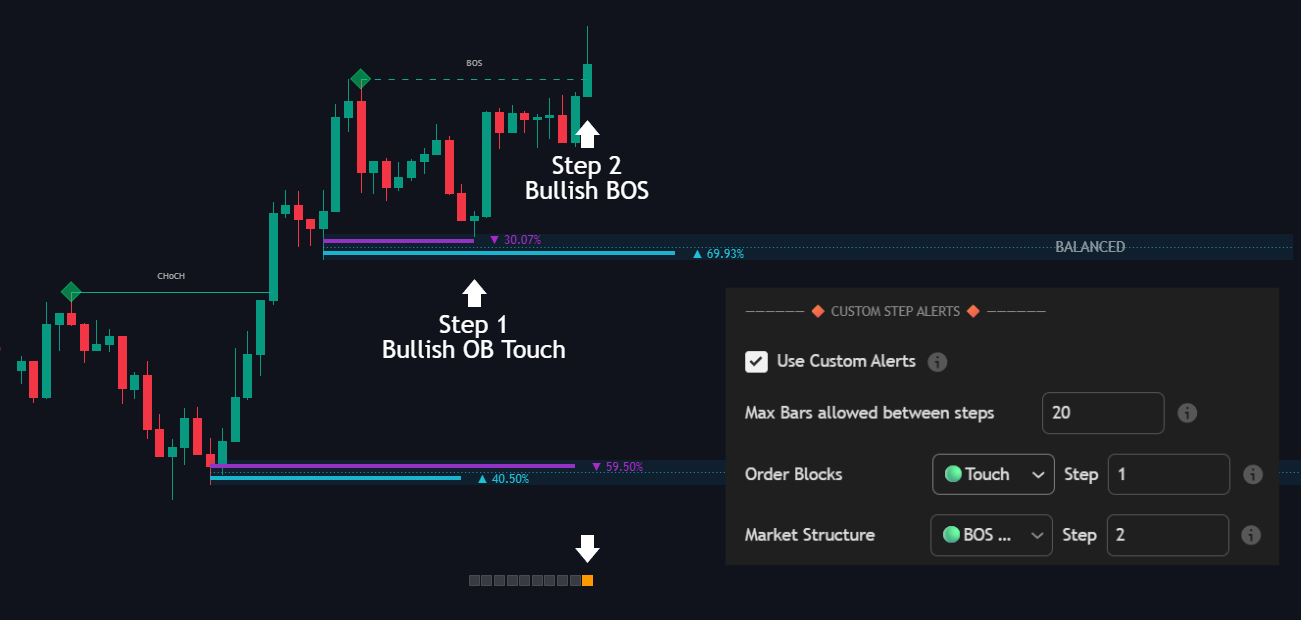
The indicator features a visual tracking bar at the bottom of your chart so you always know the status of your setup:

- The Gray Line (The Buffer Window): As soon as Step 1 is triggered, a gray bar tracking sequence appears at the bottom of the chart. This shows you that the system is actively waiting for your next step(s). It will stay visible for as long as your "Max Bars Allowed" settings specify.
- The Orange Square (The Final Trigger): If all your configured steps successfully trigger in sequence before the countdown runs out, an orange square plots at the bottom of the chart, signaling that the entire custom alert condition has been met.
4. External Source Condition (Optional)
The External Source option allows you to integrate any third-party indicator or price plot currently loaded on your chart directly into your custom step alert sequence. This lets you build highly tailored multi-indicator filters (e.g., only triggering an alert chain if RSI is below a certain threshold or if price crosses a specific moving average).
Configuration Settings
- External Source Toggle: Check this box to activate the external filter as part of your alert sequence.

- Source Selector: Choose the specific data stream from your chart that you want to track (e.g.,
RSI,Closeprice,EMA, or another indicator's plot).
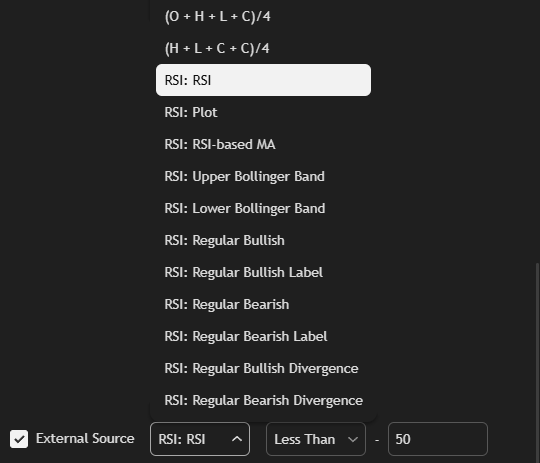
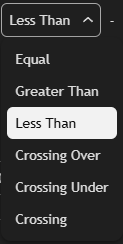
Condition Dropdown: Define the mathematical or behavioral rule the external source must meet:
- Equal: Triggers when the source value is exactly equal to your target value.
- Greater Than / Less Than: Triggers when the source value stays strictly above or below your target value.
- Crossing Over / Crossing Under: Triggers specifically at the exact moment the source crosses above or below your target value.
- Crossing: Triggers when the source crosses the target value in either direction.
Value Input: Enter the specific numeric threshold or level for the condition (e.g.,
50for RSI,30for oversold conditions, or a specific price level).Step: Assign the sequence order for this external condition. For example, if set to
Step 1, the external source condition must be satisfied first before the script looks for your chosen signal steps (like Trend Signals or FlowTrend).
5. Custom Alert Time Windows (Optional)
The Custom Alert Time Windows feature allows you to restrict when your custom alerts trigger by locking them to specific trading sessions or hours.
Example (New York Session):
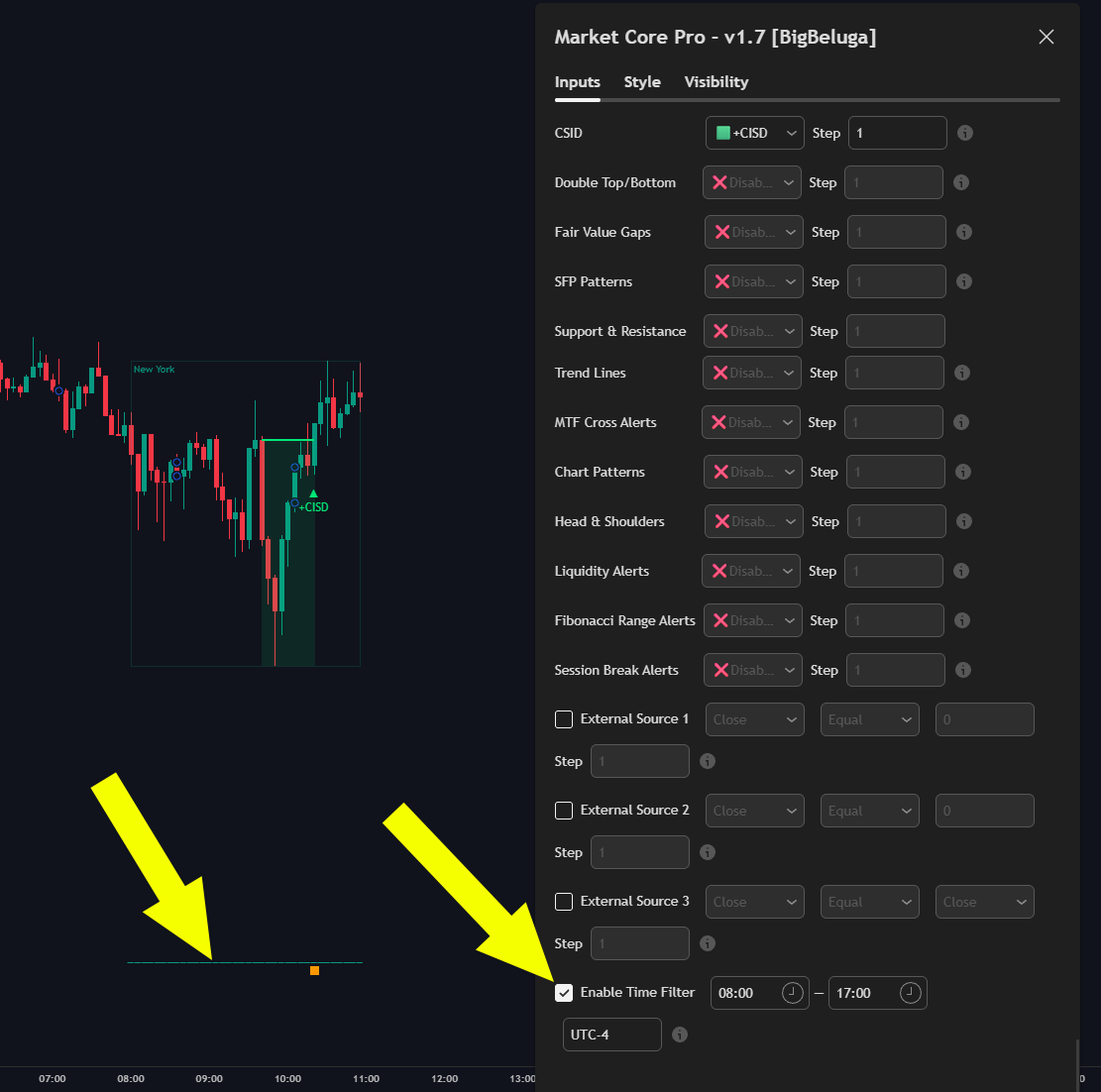
You can set your time filter to match the core New York session hours (for example, configuring the window from 08:00 to 17:00 based on your target UTC-4 timezone) to receive alerts exclusively during the active NY trading hours and avoid off-hours noise.
How to create Custom Alert()
Set the Maximum Bar Window
In the Max Bars allowed between steps field, enter the maximum number of candlesticks that can pass between each step. If the next step doesn't happen within this window, the whole sequence resets.
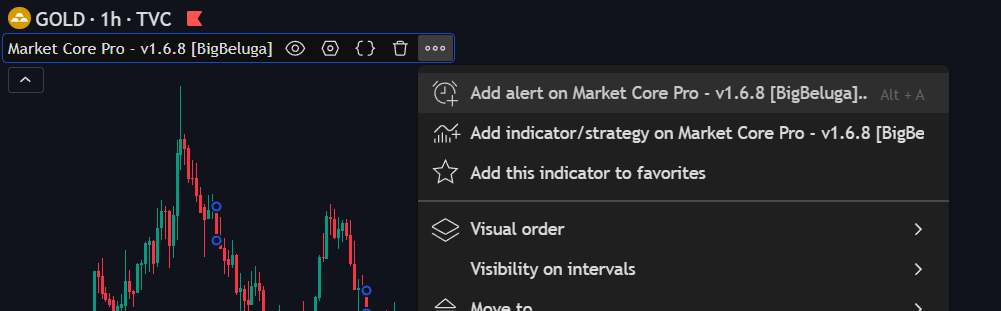
Assign Your Steps (1, 2, 3...)
Look through the available signals (Order Blocks, Market Structure, Fair Value Gaps, etc.) and assign them a sequence number using the Step inputs:
- Step 1 is the trigger that starts the chain.
- Step 2 must happen after Step 1 (within the max bar limit).
- Step 3 must happen after Step 2, and so on.
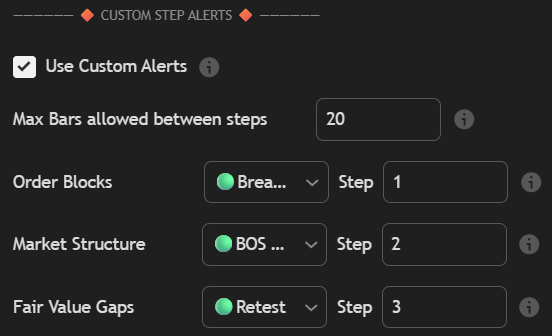
- Set any signals you don't want to use to Disabled.
Add an External Indicator Filter (Optional)
If you want to tie your alert to an outside indicator like RSI or MACD:

- Check the External Source box.
- Select your indicator from the dropdown menu (e.g.,
RSI: RSI). - Choose a condition (e.g.,
Greater Than,Crossing Over). - Type in your target value (e.g.,
50). - Give it a Step number to decide exactly when this condition needs to be true during your sequence.
Create the Alert in TradingView
Once your settings look good in the indicator panel:
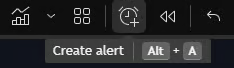
- Now, press Alt + A on your keyboard (or click the Clock icon on the right menu bar) to open the official TradingView Alert Creation box. Configure this window exactly like this:
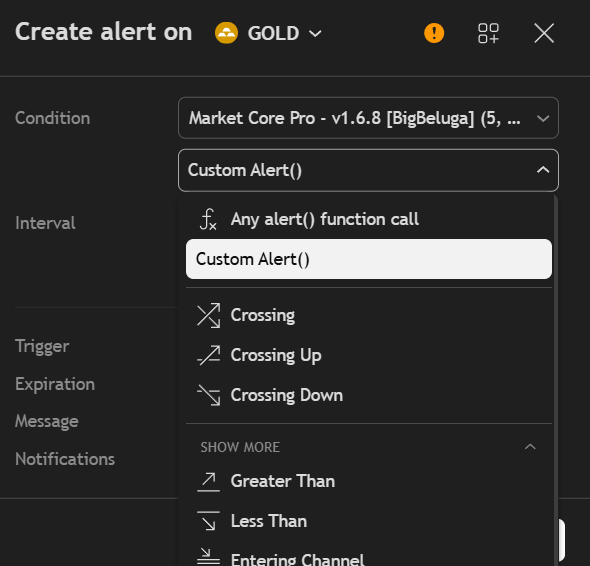
- Under Condition, select Market Waves Pro.
- Choose the Custom Alert() option from the secondary dropdown.
- Set your notification Name and Message.
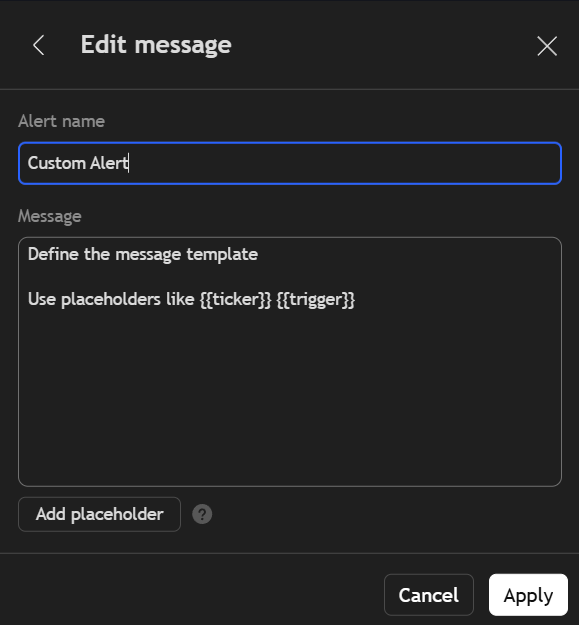
Create alert
Apply name and Message and create alert.
Step Alerts Breakdown Table
Configure your custom sequence using any combination of the following technical triggers:
| Alert Category | Description & Available Options |
|---|---|
| Order Blocks | Triggers based on Order Block interactions. • Options: Any Breakout, Breakout (Bullish/Bearish), Any Touch, Touch (Bullish/Bearish) |
| Market Structure | Triggers when key structure shifts occur. • Options: Any BOS, BOS (Bullish/Bearish), Any ChoCh, ChoCh (Bullish/Bearish) |
| Fair Value Gaps | Tracks gaps in price delivery. • Options: Any Breakout, Breakout (Bullish/Bearish), Any Created, Created (Bullish/Bearish), Any Retest, Retest (Bullish/Bearish), Any iFVG Retest, iFVG Retest (Bullish/Bearish) |
| SFP Patterns | Swing Failure Patterns tracking liquidity sweeps. • Options: Any SFP, SFP Bullish, SFP Bearish |
| Support & Resistance | Key level updates and breaches. • Options: Any S/R Formed, High Formed, Low Formed, Any S/R Crossed, Crossed Up, Crossed Down |
| MTF Cross Alerts | Higher timeframe level breaches. • Options: Daily/Weekly/Monthly (All, Bullish, or Bearish crosses) |
| Chart Patterns | Structural breakout boundaries. • Options: Any Channel Break, Channel Break Up/Dn, Any Wedge Break, Wedge Break Up/Dn |
| Liquidity Alerts | Sweeps, pools, and liquidity expansion metrics. • Options: Created (All/Bullish/Bearish), Grabbed (All/Bullish/Bearish), Bubble (All/Bullish/Bearish) |
| Fibonacci Range Alerts | Price interactions with key macro Fibonacci boundaries. • Options: All, Bullish, Bearish |
| Session Break Alerts | Multi-session range or Opening Range Breakout (ORB) expansions. • Options: All, Bullish, Bearish |
