

 X
X Discord
 Instagram
 YouTube
 ChatGPT
Open Range Breakout
The Open Range Breakout (ORB) feature in Market Core Pro identifies volatility and momentum opportunities as major trading sessions open.
It automates opening range box creation and breakout signal generation.
For full Forex session backgrounds and overlays, see Forex Trading Sessions.
Enable ORB & Core Display Controls
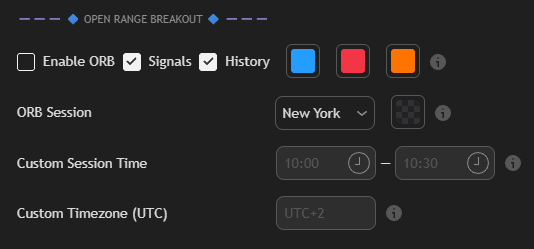
Toggle Enable ORB inside the indicator settings to plot opening ranges directly on your chart.
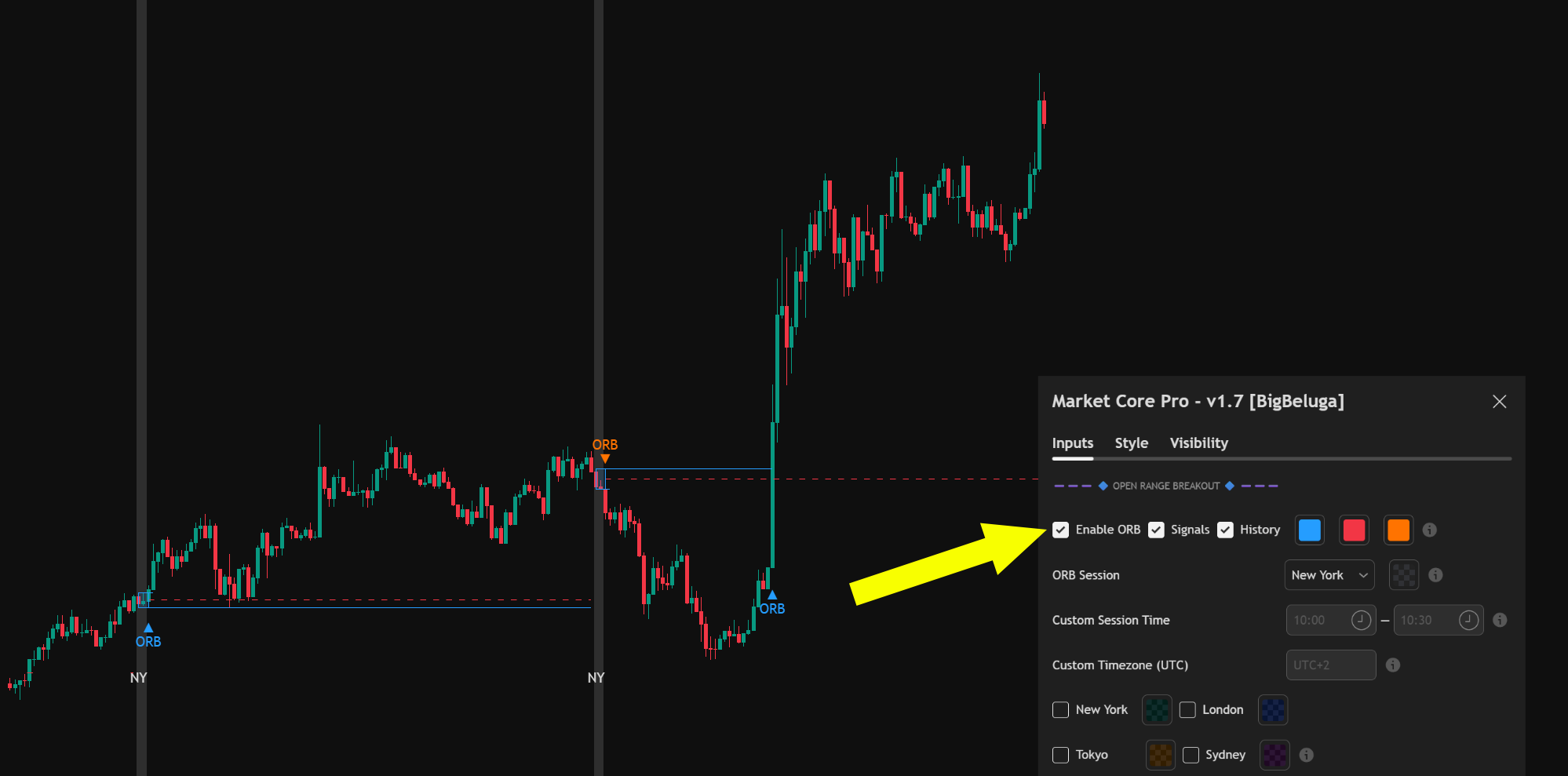
- Enable ORB: Turns the Open Range Breakout calculations and drawing tools on or off.
- Signals: Displays directional buy/sell breakout arrows (
ORB ▲/ORB ▼) on the chart when price breaks out of the established range. - History: Retains past session boxes and breakout lines on historical price action for backtesting.
- Color Controls: Adjust the visual color palette for range boxes, upper boundary lines, and lower boundary lines using the top color pickers.
Session Selection & Custom Ranges
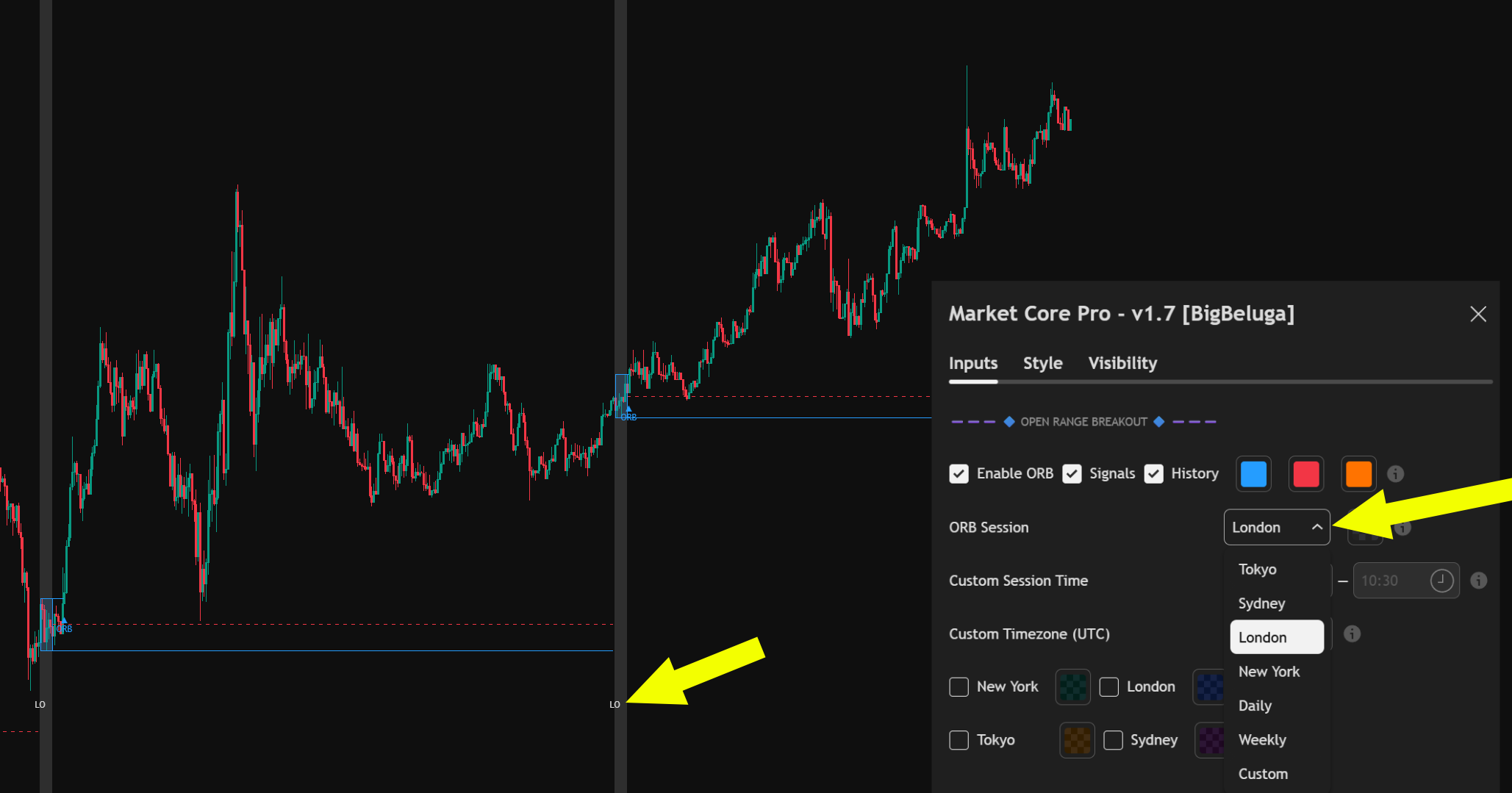
Define which market open to track using the ORB Session dropdown menu:
- Preset Market Opens: Choose from New York, London, Tokyo, or Sydney. The start of the selected session is marked on your chart with a vertical shaded line labeled at the bottom (NY, LO, TO, or SY).
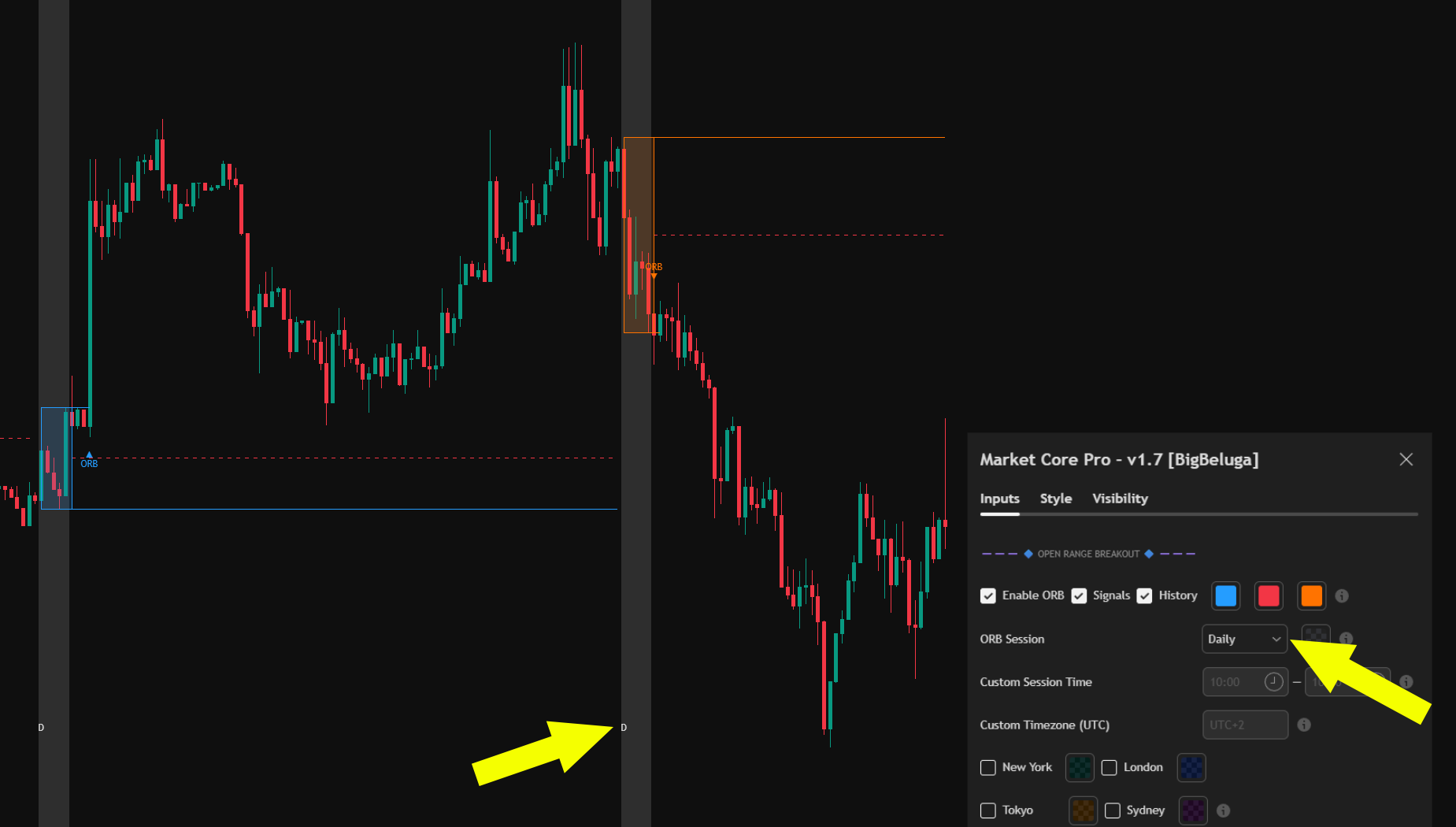
- Daily & Weekly Opens: Select Daily Open or Weekly Open to anchor the opening range to major higher-timeframe opens.
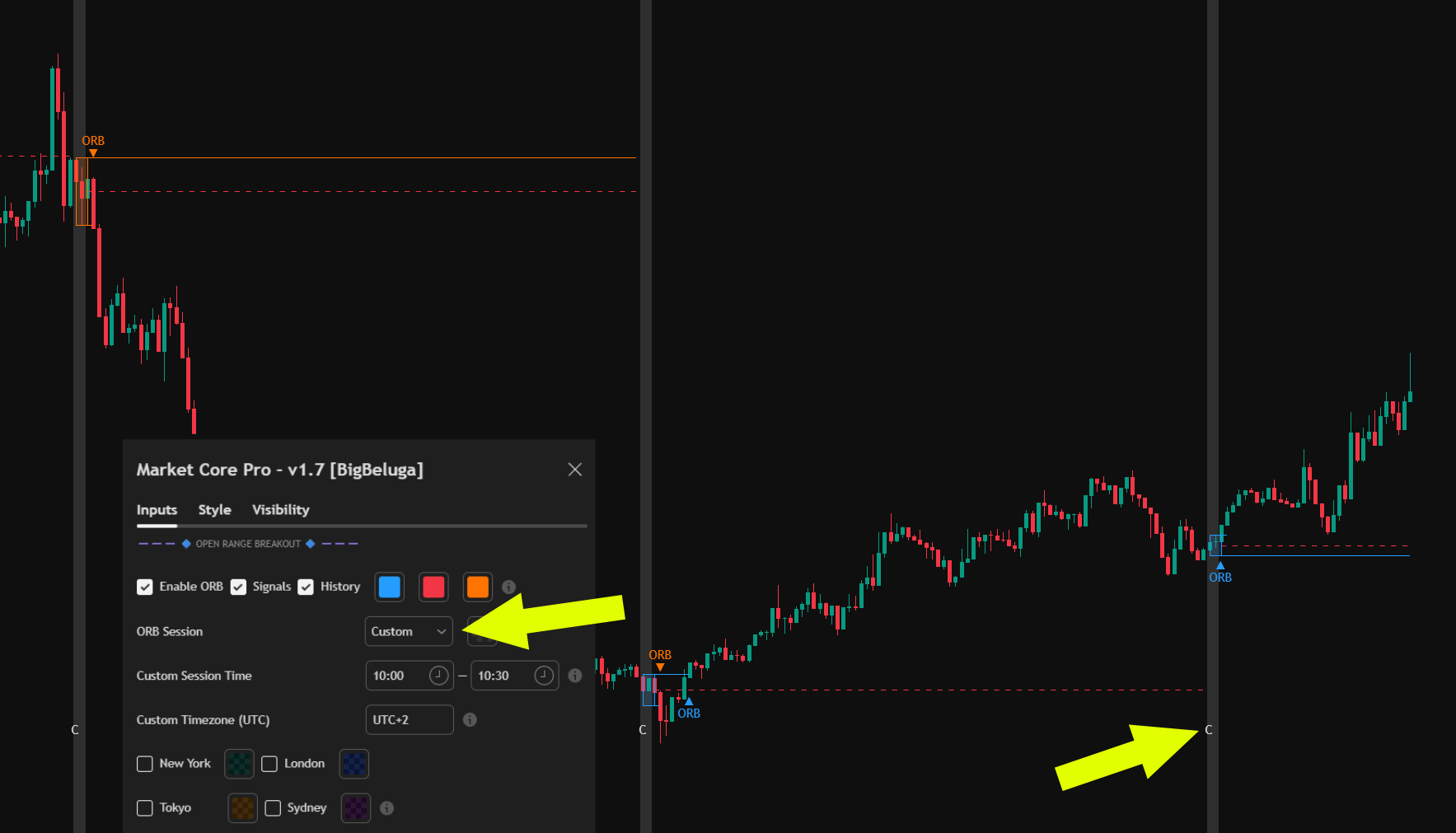
- Custom Session Time: Select Custom to specify custom start and end times using the time inputs (e.g.,
10:00 - 10:30). - Custom Timezone (UTC): Align custom session times precisely to your local time zone (e.g.,
UTC+2).
Breakout Signal Logic & Line Extension
Once a session opens, the indicator draws an Opening Range Box over the opening duration:
- Boundary Lines: Upper and lower horizontal lines extend from the range box to map breakout levels.
- One-Time Breakout Limit: A session range can only break once to the upside and once to the downside.
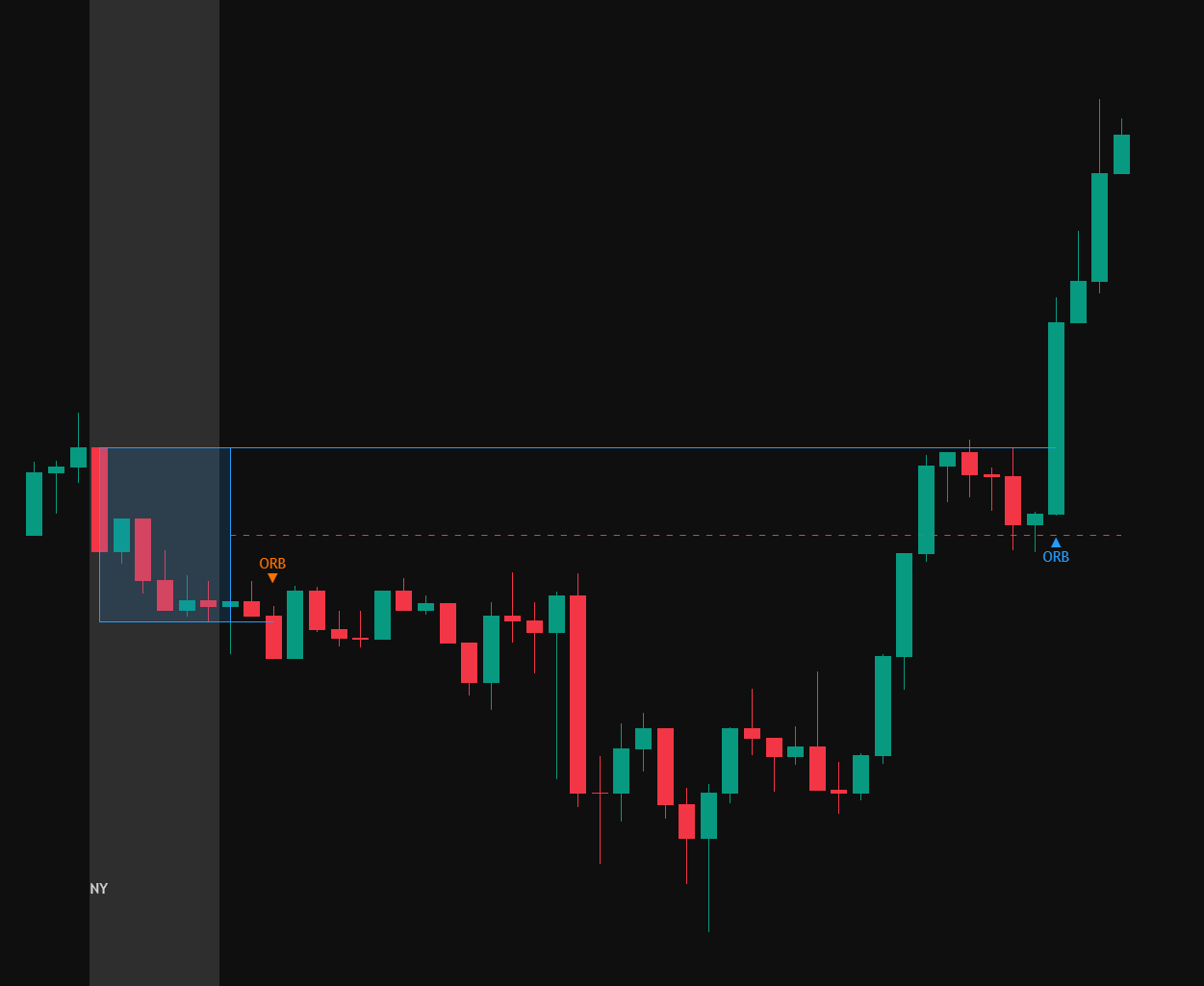
- Line Extension Freeze: As soon as price crosses either the high or low boundary, that line stops expanding past the breakout bar, and an ORB signal icon triggers.
Settings
| Setting | Description |
|---|---|
|
|
|
|
| Custom Session Time | Defines the specific time range (e.g., 10:00 – 10:30) when the "Custom" session is selected. |
| Custom UTC | Adjusts the time zone offset (e.g., UTC+2) to ensure the session aligns with your local or exchange time. |
