
 X
 Discord
 Instagram
 YouTube
 ChatGPT
Alerts
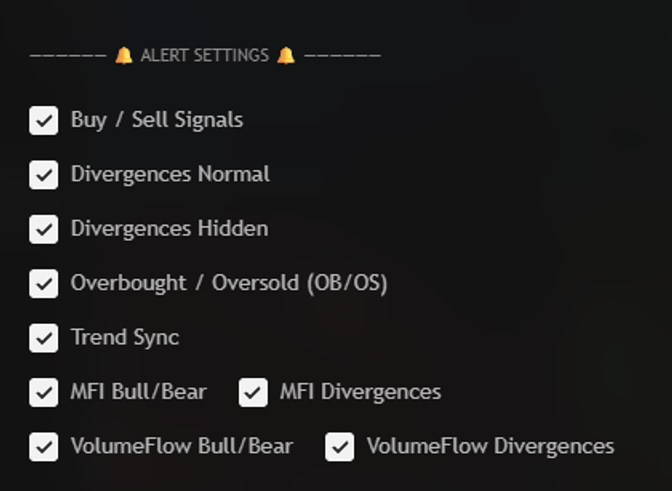
The Nautilus Mean Reversion Screener can watch all six assets for you and send one alert when any of them trips. Every event family has its own checkbox, and a single TradingView Any alert() function call alert carries all of them - no wasted alert slots.
Before you start
A checkbox only works while the module behind it is enabled. Divergence alerts need the divergence selectors active, MFI alerts need the Money Flow engine on, VolumeFlow alerts need that engine on, and Trend Sync needs its row switched on. While a module is off, its alert never fires.
The Signals Lookback (Bars) window applies too: a signal that has aged out of the table has nothing to alert on.
What you can alert on
| Toggle | Fires when |
|---|---|
| Buy / Sell Signals | The Nautilus signal prints on any tracked asset |
| Divergences Normal | A regular divergence is confirmed |
| Divergences Hidden | A hidden divergence is confirmed |
| Overbought / Oversold (OB/OS) | The oscillator reaches an extreme |
| Trend Sync | The structural bias flips |
| MFI Bull/Bear | Money flow turns bullish or bearish |
| MFI Divergences | Price and money flow disagree |
| VolumeFlow Bull/Bear | CVD turns bullish or bearish |
| VolumeFlow Divergences | Price and delta disagree |
Tick only what you act on. Everything ticked produces a stream of alerts from six assets across several timeframes, which trains you to ignore them.
Setting up the alert
Enable the rows
Open the settings and tick the event families you want in the
? ALERT SETTINGS ?group. Everything is on by default, so untick what you do not trade before creating the alert.Check the table is producing events
The alert can only forward what the matrix already computes. If a row is empty for every asset, fix that first - an alert that never fires is usually a module that is switched off, not a broken alert.
Create the TradingView alert
Press Alt + A, or use the clock icon in the right toolbar, and fill the dialog:
- Condition:
Nautilus Mean Reversion Screener [BigBeluga] - Second dropdown:
Any alert() function call - Interval:
Same as chart- the screener reads its own per-slot timeframes, so match the chart rather than overriding it - Expiration:
Open-ended - Notifications: choose where it lands, for example
App, Toasts
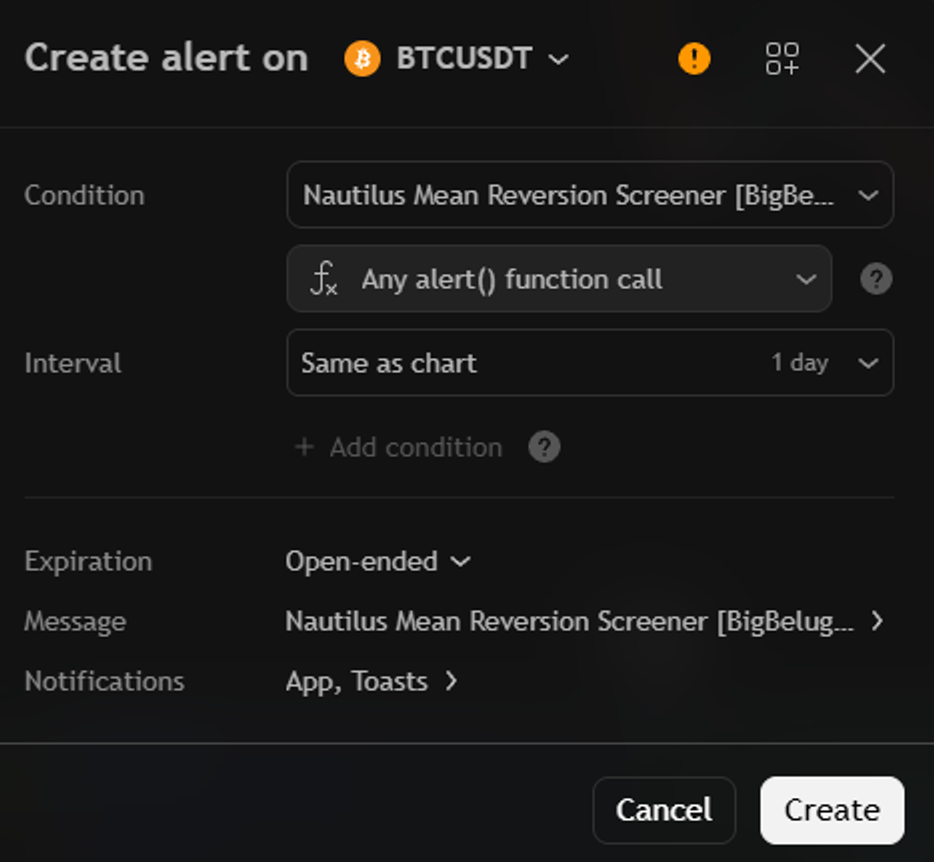
The Create alert dialog: one indicator alert, Any alert() function call Create the alert once. Every event you enabled now flows through that single alert slot.
- Condition:
Write the message
Leave the default message - the screener fills in which asset, timeframe and event fired. If you replace it with your own template, these placeholders are available:
Placeholder Description {{ticker}}Symbol of the chart the alert was created on {{tickerid}}Full ticker identifier of that chart, e.g. BINANCE:BTCUSDT{{exchange}}Exchange prefix of that chart {{close}}Close of the current bar {{interval}}Chart timeframe, e.g. 15orW{{timenow}}Time the alert fired {{trigger}}Name of the event that fired The placeholders describe the chart, not necessarily the asset that tripped - the screener watches six symbols at once, so the asset that fired is named inside the indicator message. Keep the default message if you need to know which column moved.
Confirm it fires
Wait for a condition on any of the six assets. A screener alert that has never fired after a full session is almost always a disabled module or a ticker that will not load inside the slot.
Webhooks and automation
Because the alert message is the request body, the same alert can drive a webhook: point the TradingView notification at your endpoint and read the asset name and event out of the payload to route it. This is the reason to leave the message on its default - the screener already writes a parseable line for you.
Related
- Settings - enabling the modules the alerts depend on
- Signals (Buy/Sell) - the event behind the buy/sell alert
- Divergences & Extremes - the divergence and OB/OS alerts
