> For the complete documentation index, see [llms.txt](https://docs.bigbeluga.org/llms.txt).
> Markdown versions of documentation pages are available by appending `.md` to page URLs; this page
> is available as [Markdown](https://docs.bigbeluga.org/toolkits-pro-plus/nautilus-pro/any-alert-function-call.md).
# Any alert() Function Call
Nautilus PRO+ sends every signal through a single TradingView alert. Instead of one alert per
condition — and running out of alert slots — you choose which events matter inside the indicator
settings and let one `Any alert() function call` alert carry all of them.
## Before you start
An alert mode only works while its module is enabled. Wave and momentum events need their module drawn
on the chart, divergences need the divergence engine on, and the exhaustion rows need the reversals
module on. While a module is switched off, its alert dropdown stays inactive.
## What you can alert on
| Module | Alert modes |
| --------------------- | ---------------------------------------------------- |
| Wave Cross Alert | Any wave cross, bullish cross, bearish cross |
| Strong Confluence | Strong bullish or strong bearish confluence |
| Divergence Alert | Any, bullish or bearish regular divergence |
| Hidden Divergence | Any, bullish or bearish hidden divergence |
| Volume Exhaustion | Any, bullish or bearish exhaustion zone |
| Threshold Zone Alert | Any, upper or lower threshold break |
| Momentum Cloud Flip | Any, bullish or bearish cloud flip |
| Momentum Signal Cross | Any, bullish or bearish momentum cross |
| Rolling CVD Flip | Any, bullish or bearish CVD flip |
## Setting up the alert
{% stepper %}
{% step %}
### Enable the module on the chart
Turn the module on before configuring its alert. If the pane is not drawing the signal, there is
nothing for the alert to read.
{% endstep %}
{% step %}
### Choose the alert mode
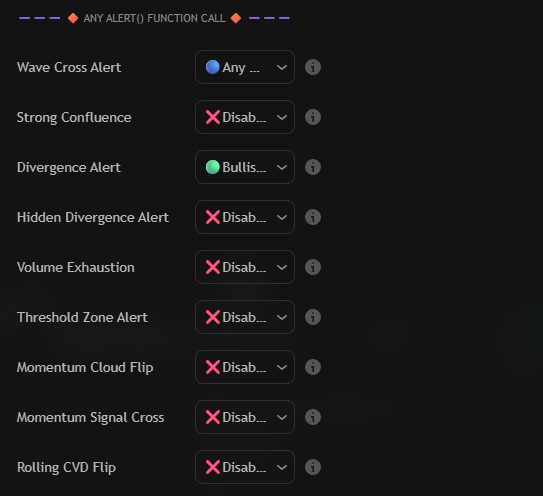
Open the `🔶 Any alert() function call 🔶` group and change the dropdown for the module from
`❌Disabled` to the event you want. Every module keeps its own dropdown, so one alert can listen to a
wave cross, a divergence and a CVD flip at the same time.
The nine alert modes of Nautilus PRO+, one dropdown per module
{% endstep %}
{% step %}
### Write the message template
The template is the payload every alert sends — both the popup and the webhook body. Placeholders are
replaced the moment the alert fires.
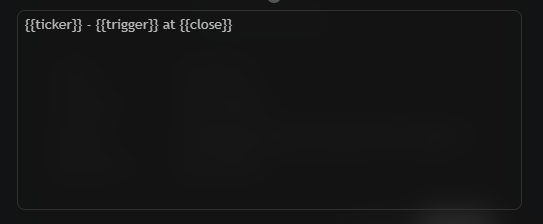
The Alert Message box that carries every module event
```
{{ticker}} - {{trigger}} at {{close}}
```
| Placeholder | Description |
| -------------- | ---------------------------------------------------------------------- |
| `{{ticker}}` | Symbol name without the exchange prefix, e.g. `BTCUSDT`. |
| `{{tickerid}}` | Full ticker identifier, e.g. `BINANCE:BTCUSDT`. |
| `{{exchange}}` | Exchange prefix of the current symbol. |
| `{{close}}` | Close of the current bar. |
| `{{open}}` | Open of the current bar. |
| `{{high}}` | High of the current bar. |
| `{{low}}` | Low of the current bar. |
| `{{volume}}` | Volume of the current bar. |
| `{{interval}}` | Chart timeframe, e.g. `15` or `W`. |
| `{{timenow}}` | Current time when the alert fires. |
| `{{trigger}}` | Name of the event that fired — this is what distinguishes the modules. |
{% endstep %}
{% step %}
### Create the TradingView alert
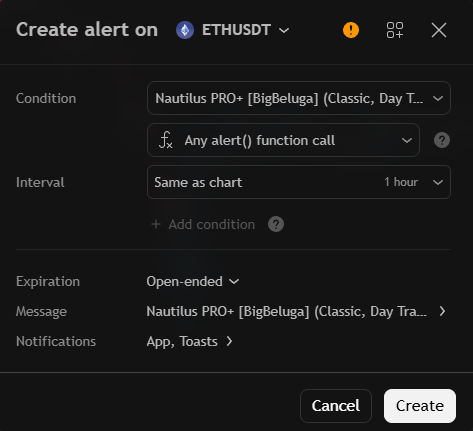
Press Alt + A (or the clock icon in the right toolbar) and configure the dialog:
- **Condition:** `Nautilus PRO+`
- **Second dropdown:** `Any alert() function call`
- **Message:** leave the default placeholder text if you want the template above to be used, or paste a
fixed message when you only need a trigger.
The TradingView dialog for a single Any alert() function call alert
Create the alert once. Every module event you enabled in the settings now flows through that single
alert slot.
{% endstep %}
{% endstepper %}
{% hint style="info" %}
The `{{trigger}}` placeholder is what makes a shared template readable. Two alerts from different
modules produce different text, so you can tell a wave cross from an exhaustion zone without opening
the chart.
{% endhint %}
## Webhooks and automation
Because the template is the request body, the same alert can drive a webhook: point the TradingView
notification at your endpoint and parse `{{trigger}}` to route each event. For sequences that should
only fire when several conditions line up, use
[Custom Step Alerts](/toolkits-pro-plus/nautilus-pro/custom-step-alerts).